Making Control Board fit any setup
A dashboard that works well on one setup can become hard to read on another. This round of work focused on making Control Board fit any setup, not only the one it was first built for. Every screen was checked against three sample setups: a single small server, a typical home lab, and a large estate with several sites and hundreds of virtual machines and containers.
These changes are in testing now (build 0.10.22 at the time of writing) and will reach the alpha testers once they pass. The screenshots below come from the sample setups, so every name and address in them is fictional.
Big setups stay readable
- A new Layout setting: Auto, Always full or Always compact. Auto switches to the compact view once you have more than 6 hosts or 60 guests.
- On the network map, each site can fold down to one summary box. Click a box to open it, or use Open all and Fold all. Control Board remembers which sites you folded.
- The Overview groups hosts by site, and a filter box appears once you have more than a handful of hosts.
- Kubernetes separates your own applications from the cluster’s platform components, and on large clusters the platform list starts folded. If a namespace is placed in the wrong group, you can move it yourself, and undo that later.
- Long service-check lists get a filter and an “only problems” switch. Long lists elsewhere show the first few, with a “show more” button.
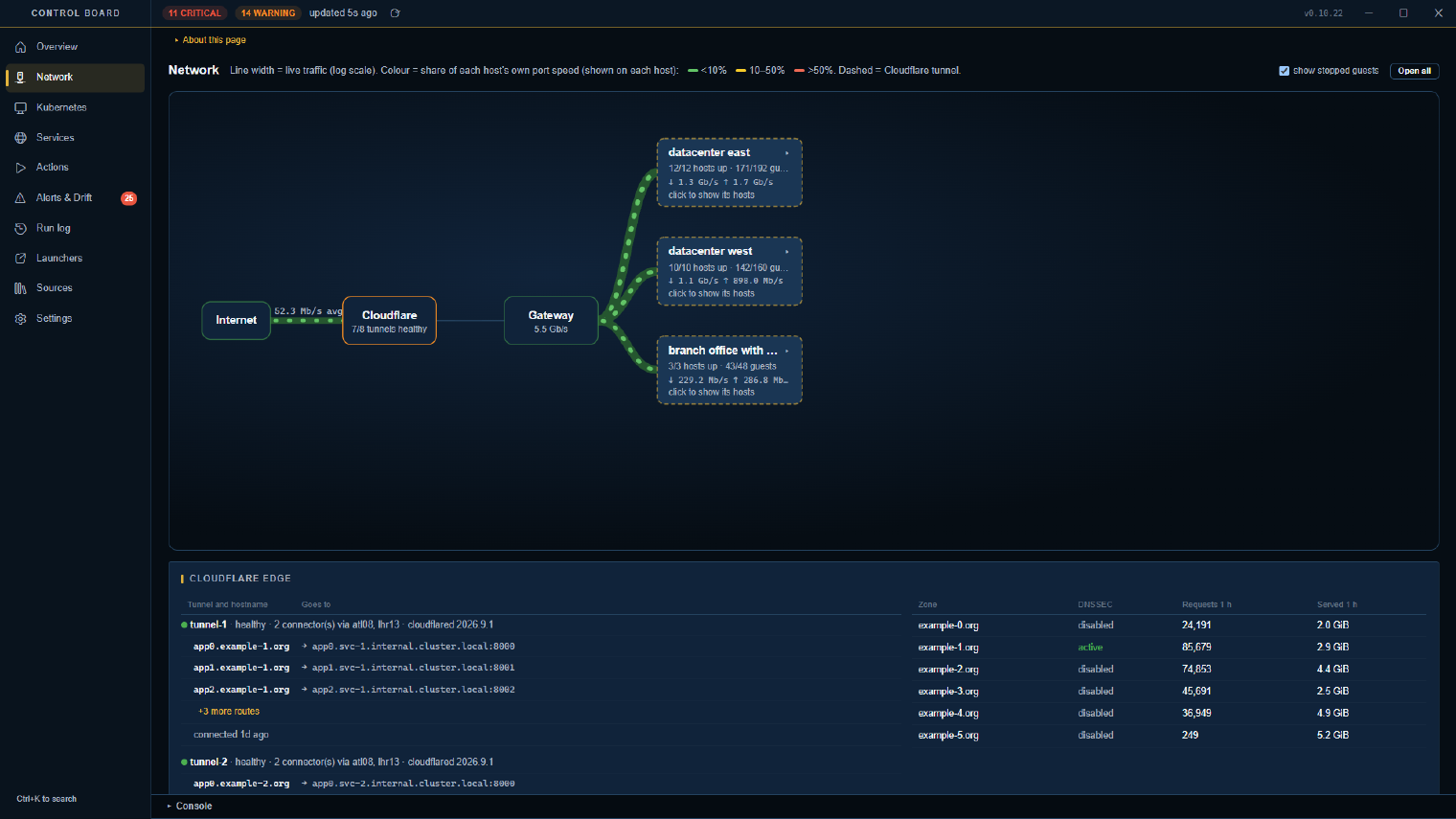
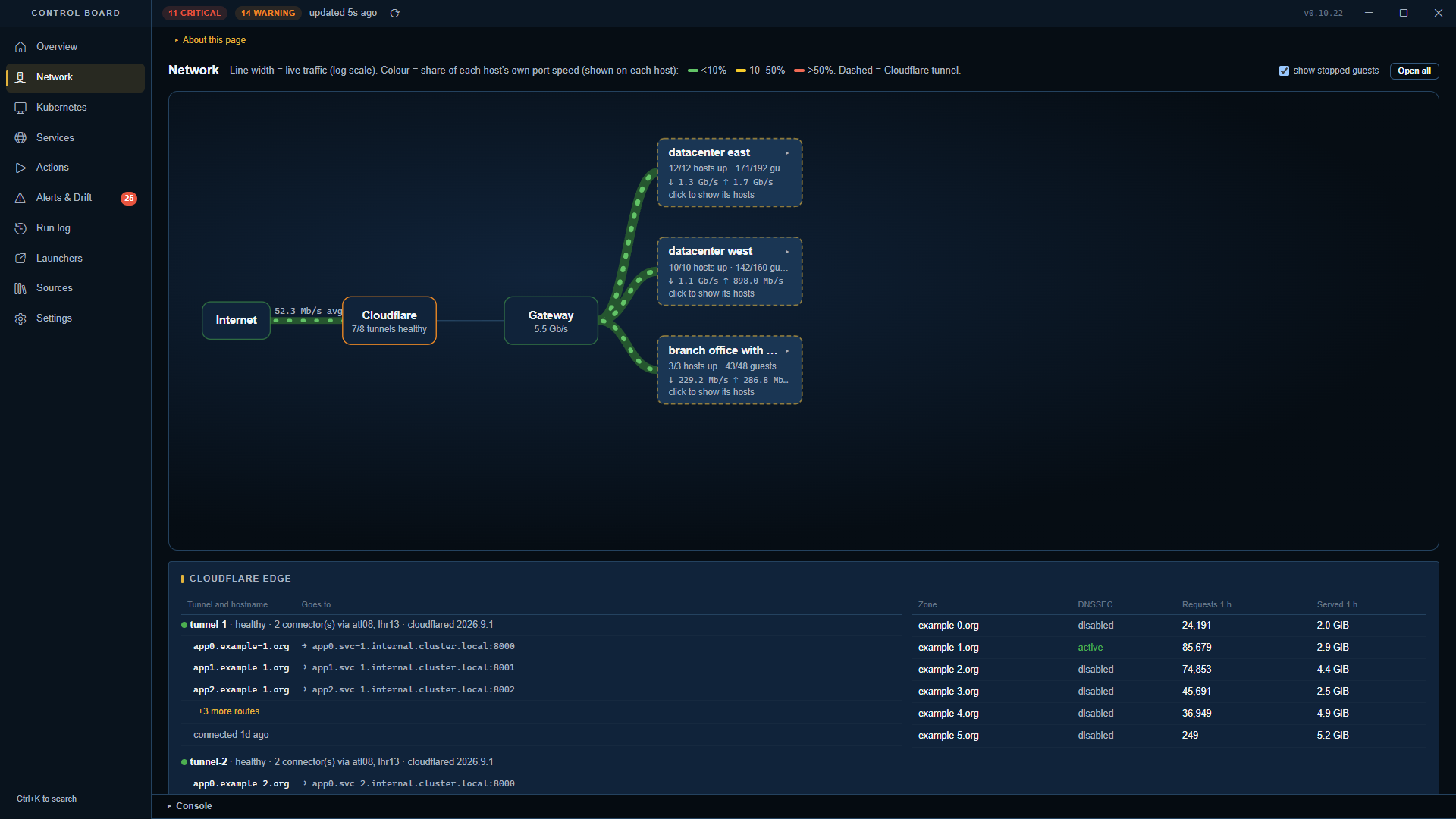 With 25 hosts in three sites, each site folds to one summary box. Click one to open it.
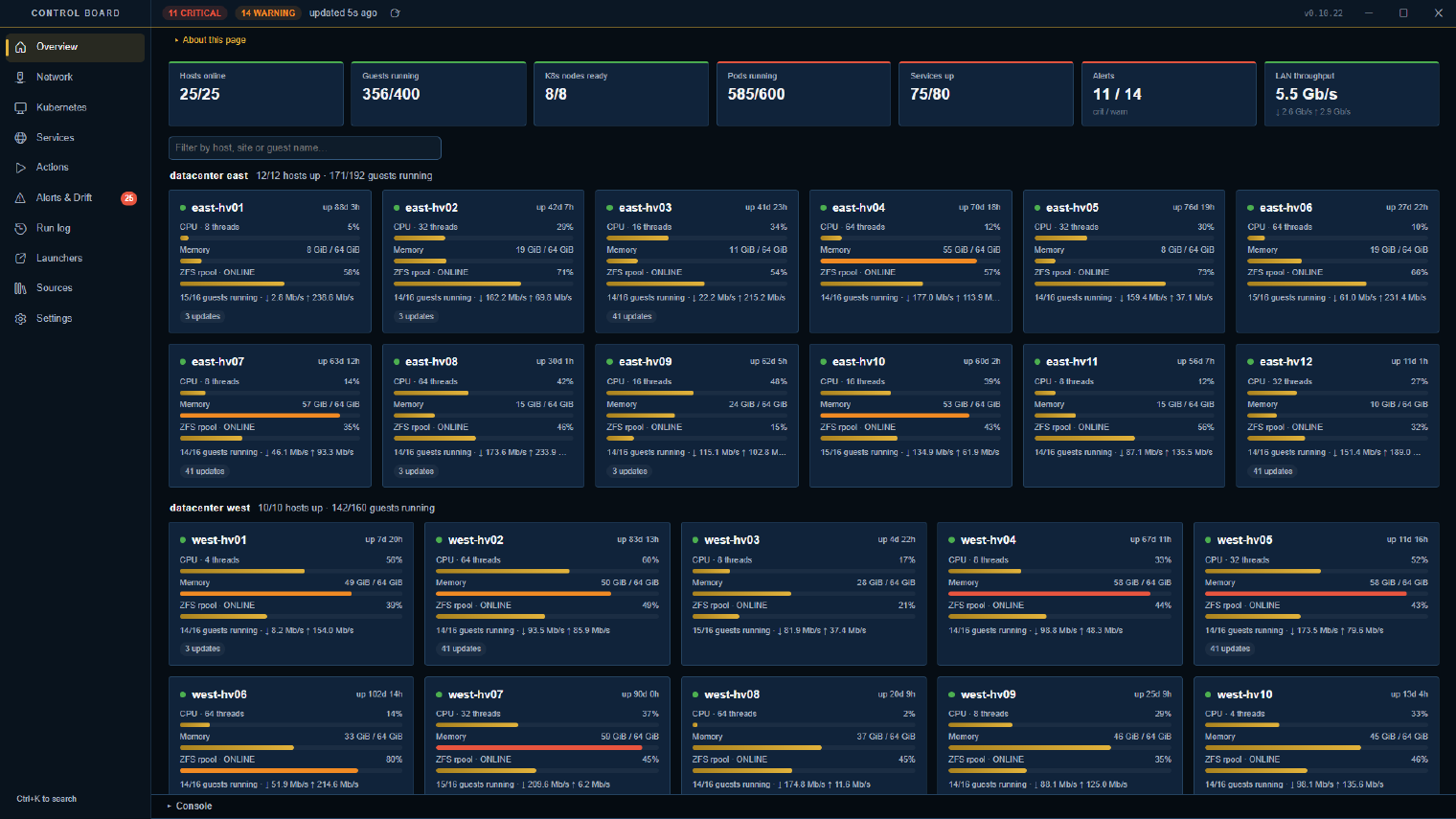
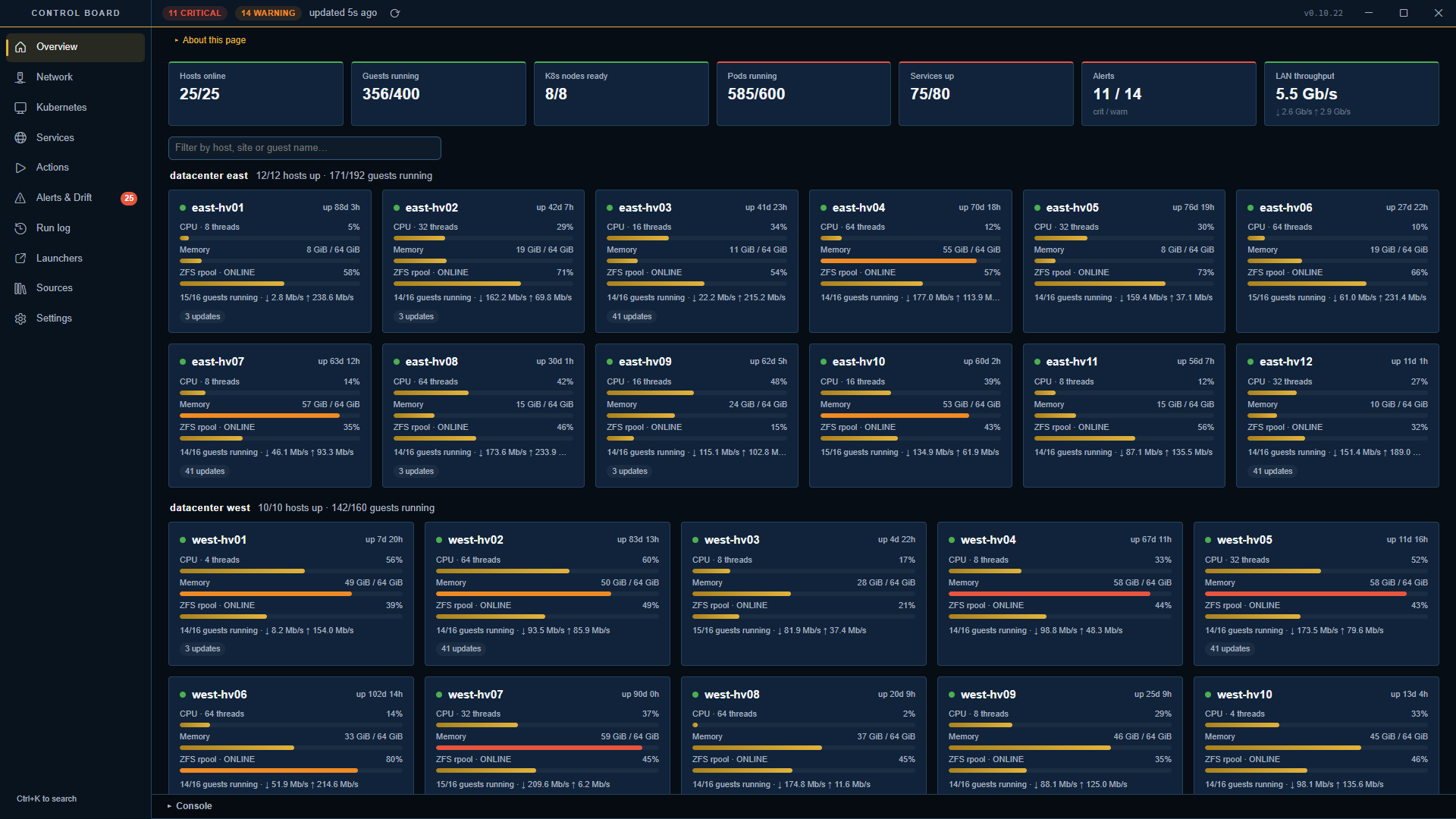 A large setup on the Overview: hosts grouped by site in the compact layout, with the filter box.
Accurate network traffic
The map previously colored traffic against a single fixed link speed, which could be misleading. In Settings you now choose what the colors represent: the share of each host’s own network port (Control Board reads the port speed from the host and shows it on the host’s box), or the share of your internet connection, using the speed you enter.
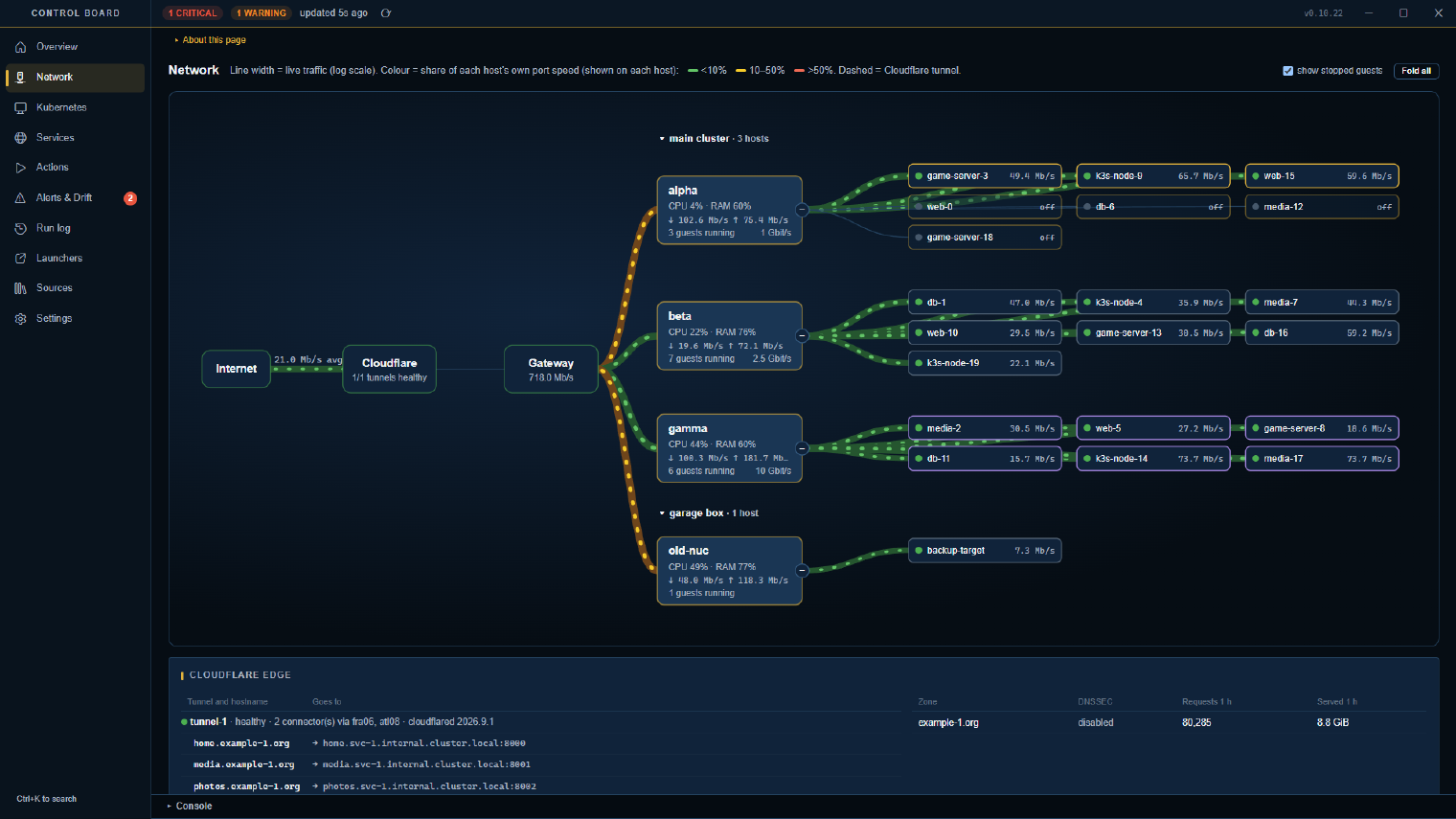
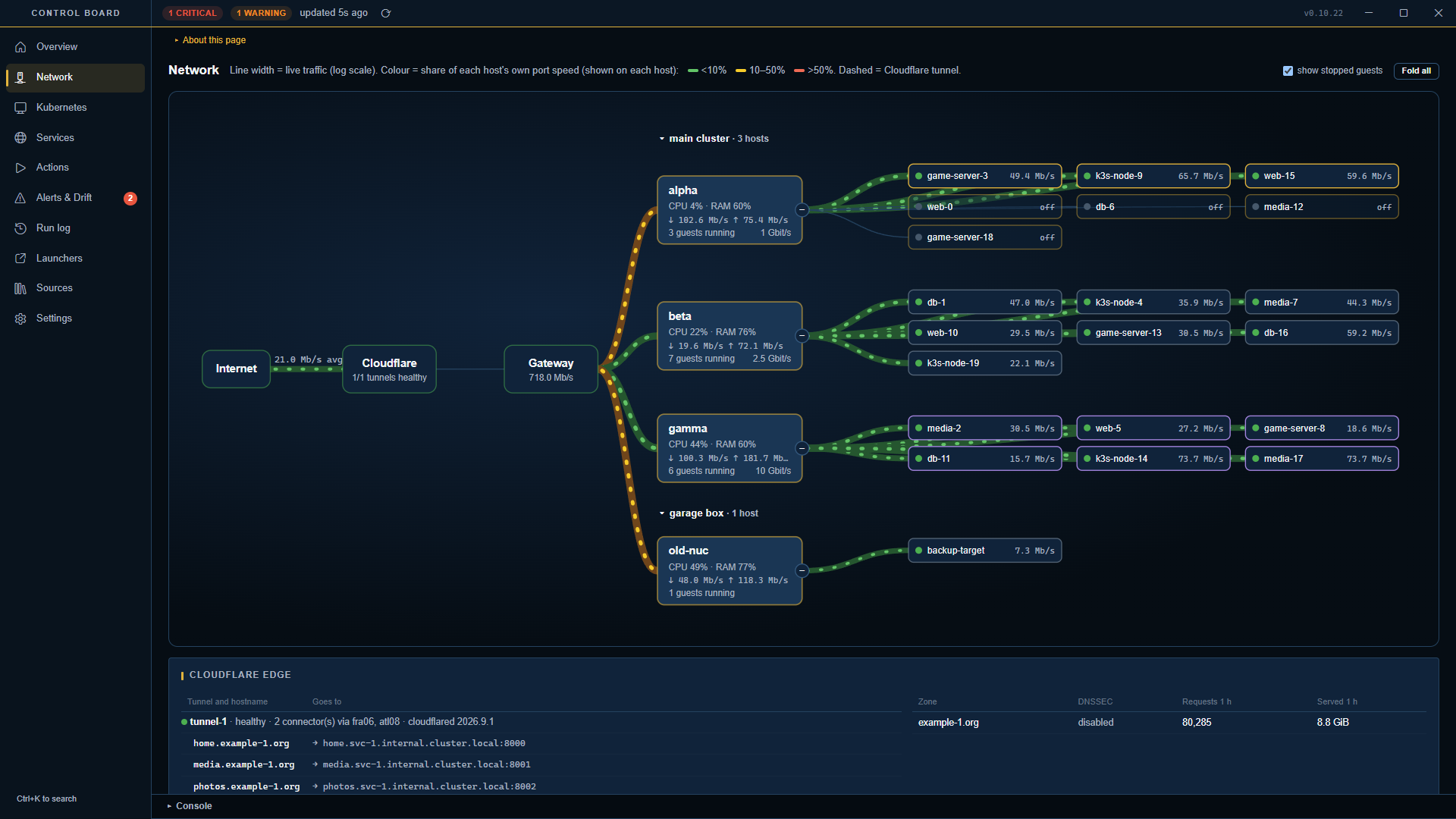 Each host shows its own port speed, and traffic is colored by how much of that port it uses.
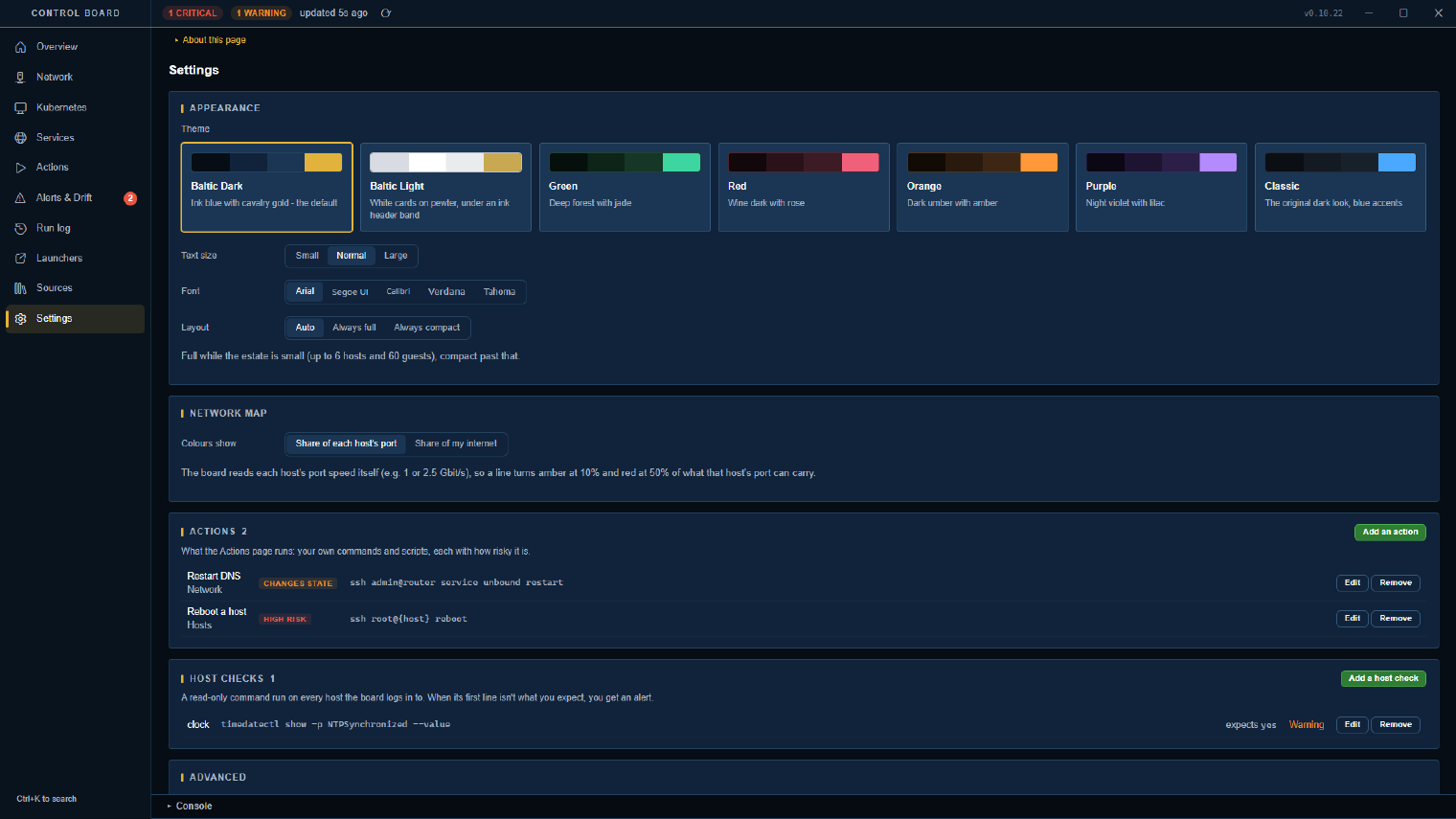
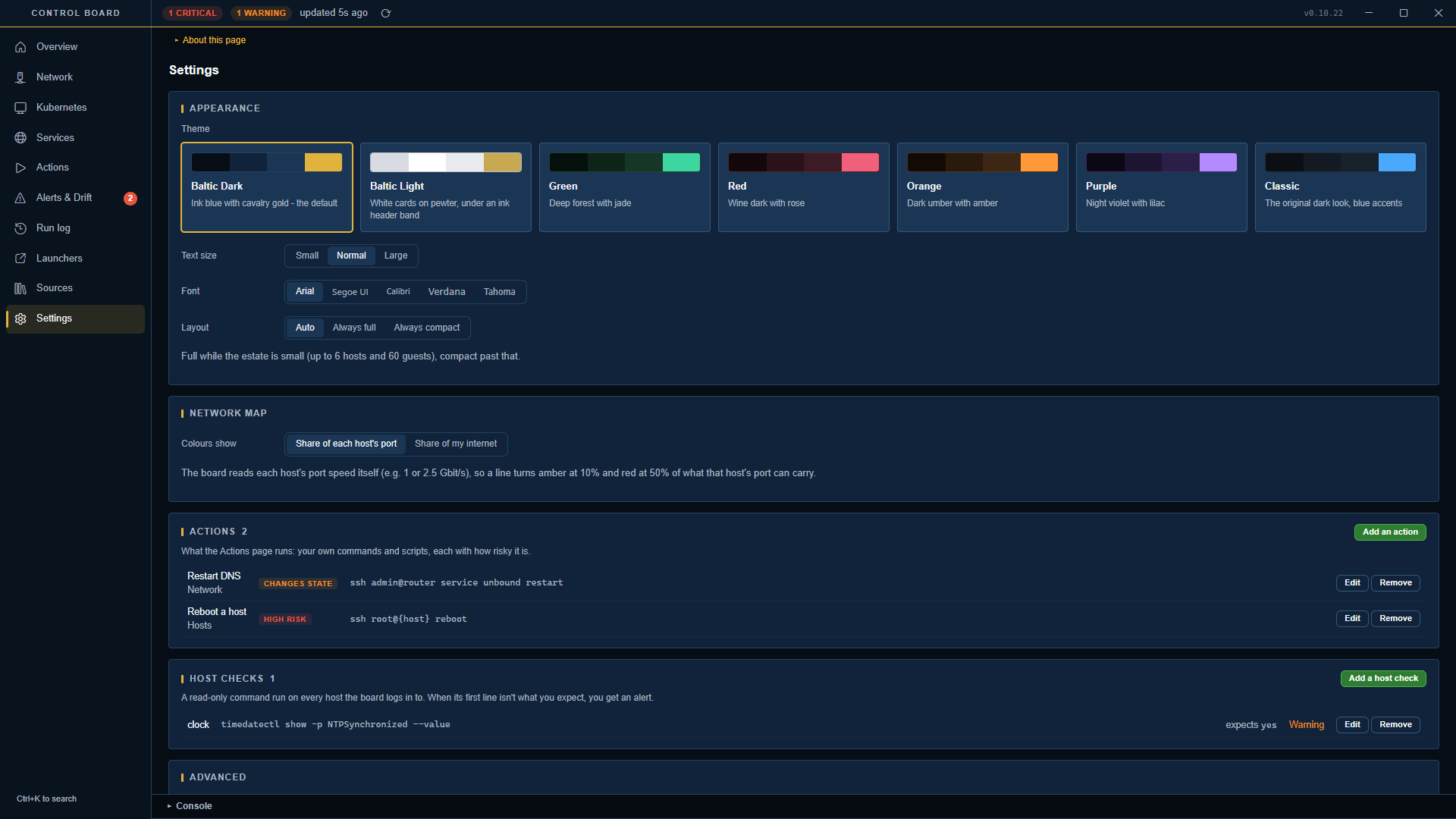 Choose Auto, full or compact layout, and whether map colors mean port speed or internet speed.
Easier setup
- Advanced options in the setup screens are now shown by default instead of being hidden.
- Each Proxmox site can have its own login. Adding a second site never changes how the first one signs in.
- Control Board now reuses one connection per host instead of opening a new one for every check, which reduces the load on your servers.
Smaller fixes include aligned panels in the run log, consistent table styling, a centered app name, and simpler chart headings (“Disk”, “Pressure”).
What’s next
Further testing of these builds, followed by their release to the alpha testers.